

 Table of Content
You've got a vision for your space. The furniture arrangement is stuck in your head, the color palette feels right - but getting it out of your imagination and onto your walls is where most people lose momentum.
That's exactly what the best AI interior design tools are built for. In 2026, these tools have moved far beyond novelty. They're being used by homeowners redesigning living rooms, renters who can't touch a wall, and office managers planning collaborative workspaces - all without hiring a firm or waiting weeks for a designer.
But not all tools are equal. And most guides online skip the part that actually determines whether you get a useful render or a warped, unrealistic image: how you use them.
This guide is about the tools for designing the inside of your home and office, what is good about each tool, what they are missing and how to use them to get results that you can really use.
How to Write a Prompt That Gets You a Useful Render
Before selecting tools, first clearly confirm the: output quality is entirely determined by input.
Most people type "modern bedroom" and wonder why the result looks generic. AI interior design tools respond to specificity, not vague style names.
A strong prompt follows this structure:
Room type + design style + materials/colors + lighting + exclusions
Here's the difference:
- Weak: "modern living room"
- Strong: "Japandi living room, warm oak flooring, linen sofa in cream, indirect floor lighting, no television, no harsh shadows"
The exclusions part is one of the most underused features. Tools like Spacely AI let you explicitly tell the AI what not to include - clutter, appliances, specific materials. Use it.
Don’t forget the lighting - it’s the one area where AI tools almost always trip up. You’ve got to be super specific about whether you want natural or artificial light, and more importantly, where it’s coming from.
The Top AI Interior Design Tools Worth Using in 2026
1. RoomSketcher
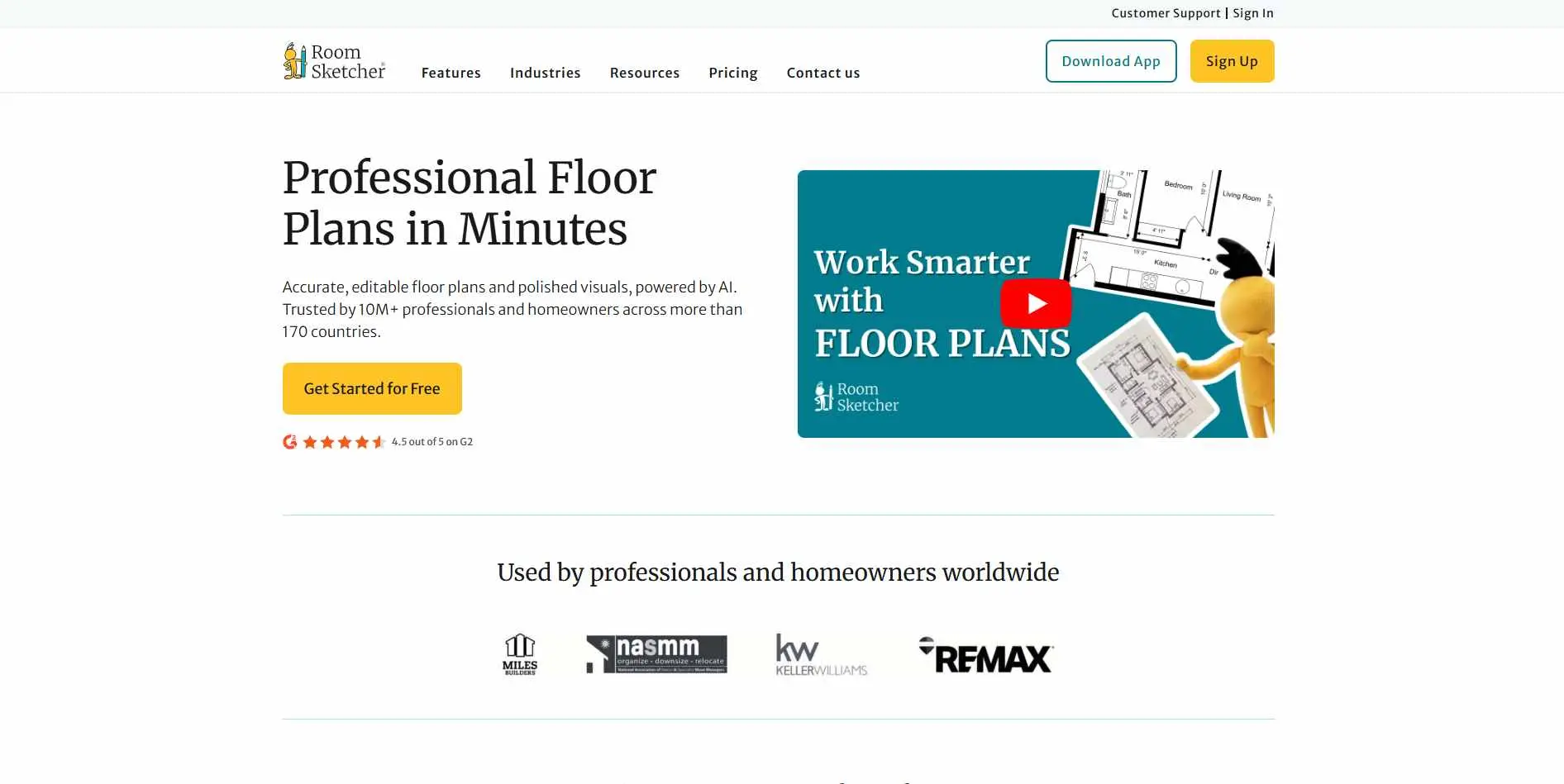
RoomSketcher is a floor plan builder that produces 3D walkthroughs. You draw the layout first, then apply finishes - which is a fundamentally different workflow from photo- based tools. Knowing your room's dimensions gives you more control here than uploading a photo and hoping the AI reads the layout correctly.
Key Features:
- Drag-and-drop floor plan editor with real room dimensions
- 3D visualisation generated from any floor plan
- 50,000+ furniture and decor items in the object library
- Snapshot and 3D photo export for client presentations
Best for: Architects, real estate agents, and renovation planners who need the layout nailed down before style even enters the conversation.
Limitation: Not a generative AI render tool. You won't upload a photo and get a redesign - you build from scratch, which takes longer.
2. Spacely AI
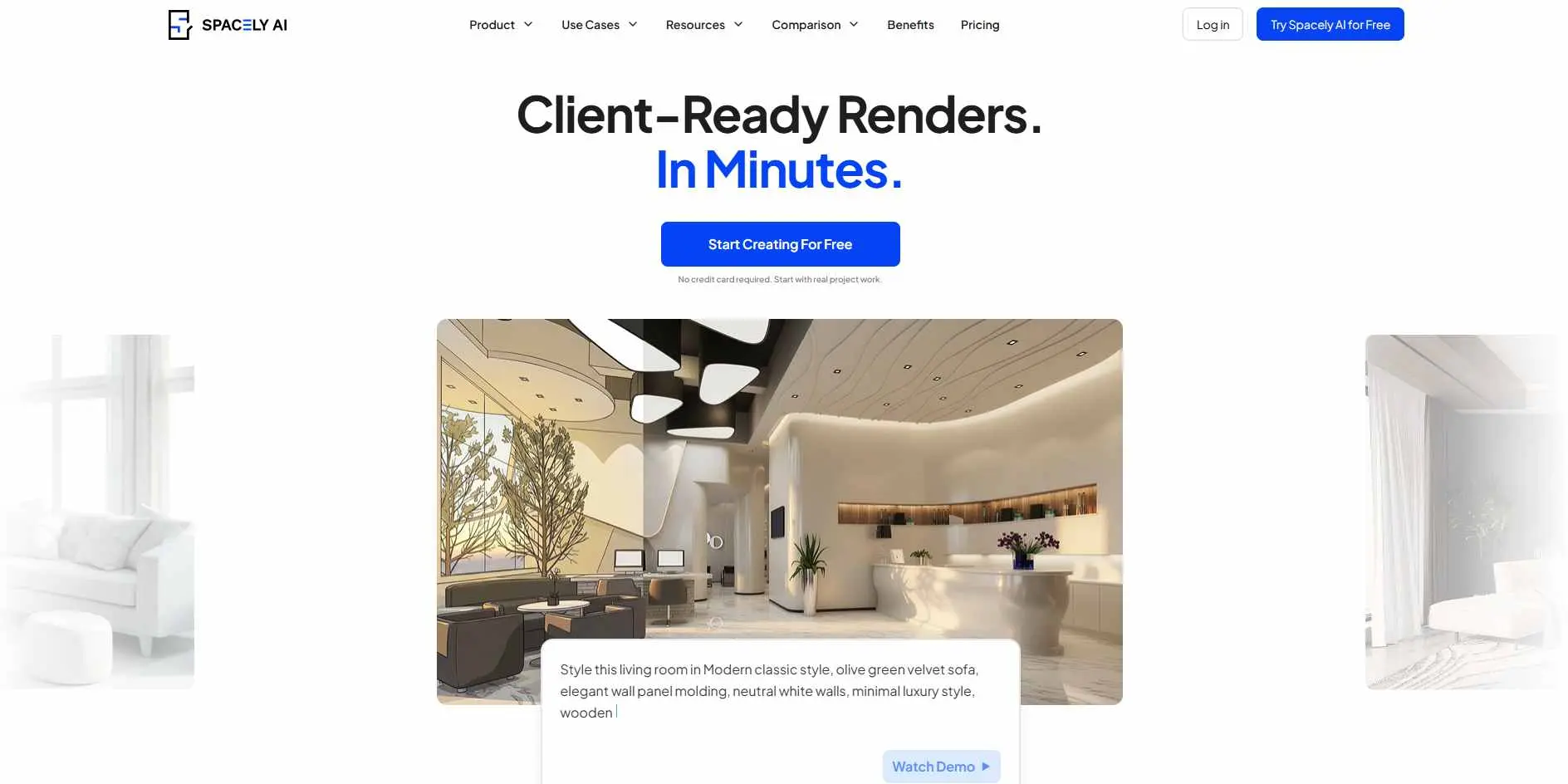
Spacely AI give multiple redesign renders across styles, just upload a room photo and get multiple redesign. The exclusion prompt is the standout feature - you can block specific elements from the output. That level of control means you're not just getting a vague inspiration image; you're steering it toward something that could actually work in your space.
Key Features:
- Photo-to-render with style selection
- Custom prompt input with exclusion support
- Multiple render variations per prompt
- Commercial-ready output resolution
Best for: Designers and homeowners who already have a room photo and want to explore styles before committing to changes.
Limitation: Like most render tools, it struggles with accurate window placement and realistic shadows.
3. Paintit AI
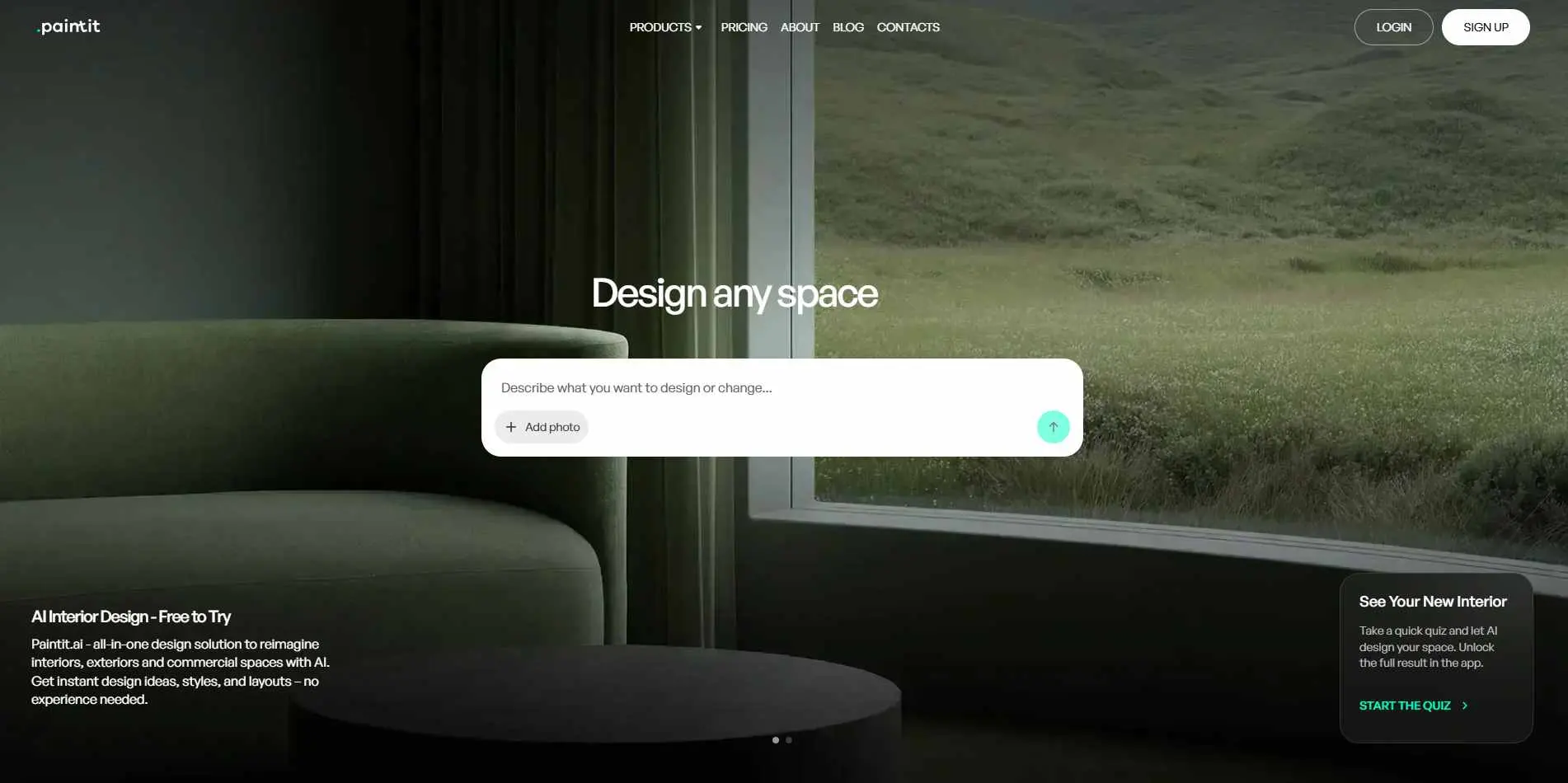
Paintit solves one specific problem: visualizing paint colors on your walls before you touch a brush. Its narrow scope makes it more accurate than general-purpose tools for this use case. Most people have a story about a shade that looked nothing like the swatch - this tool exists specifically to prevent that mistake.
Key Features:
- Upload a room photo and apply paint colors instantly
- Color palette recommendations filtered by design style
- Before/after toggle view
- Works on exterior walls too
Best for: Anyone repainting who's been burned by buying the wrong shade after trusting a tiny swatch.
Limitation: Strictly a paint visualization tool. It won't help with furniture, layout, or lighting.
4. RoomGPT

Upload a photo, select a theme, get a redesigned version of your room in seconds. One of the faster tools here, and the free tier is genuinely useful. Think of it as an idea machine rather than a precision tool - it's better at sparking a direction than delivering a final brief.
Key Features:
- One-click room redesign from a single photo
- 12+ design themes including minimalist, maximalist, and biophilic
- Fast render times, often under 30 seconds
- Free tier available
Best for: Beginners who want a quick style preview without learning any interface.
Limitation: Output quality is inconsistent. Sometimes genuinely useful; other times the AI guesses wrong about your room's basic structure.
5. Interior AI
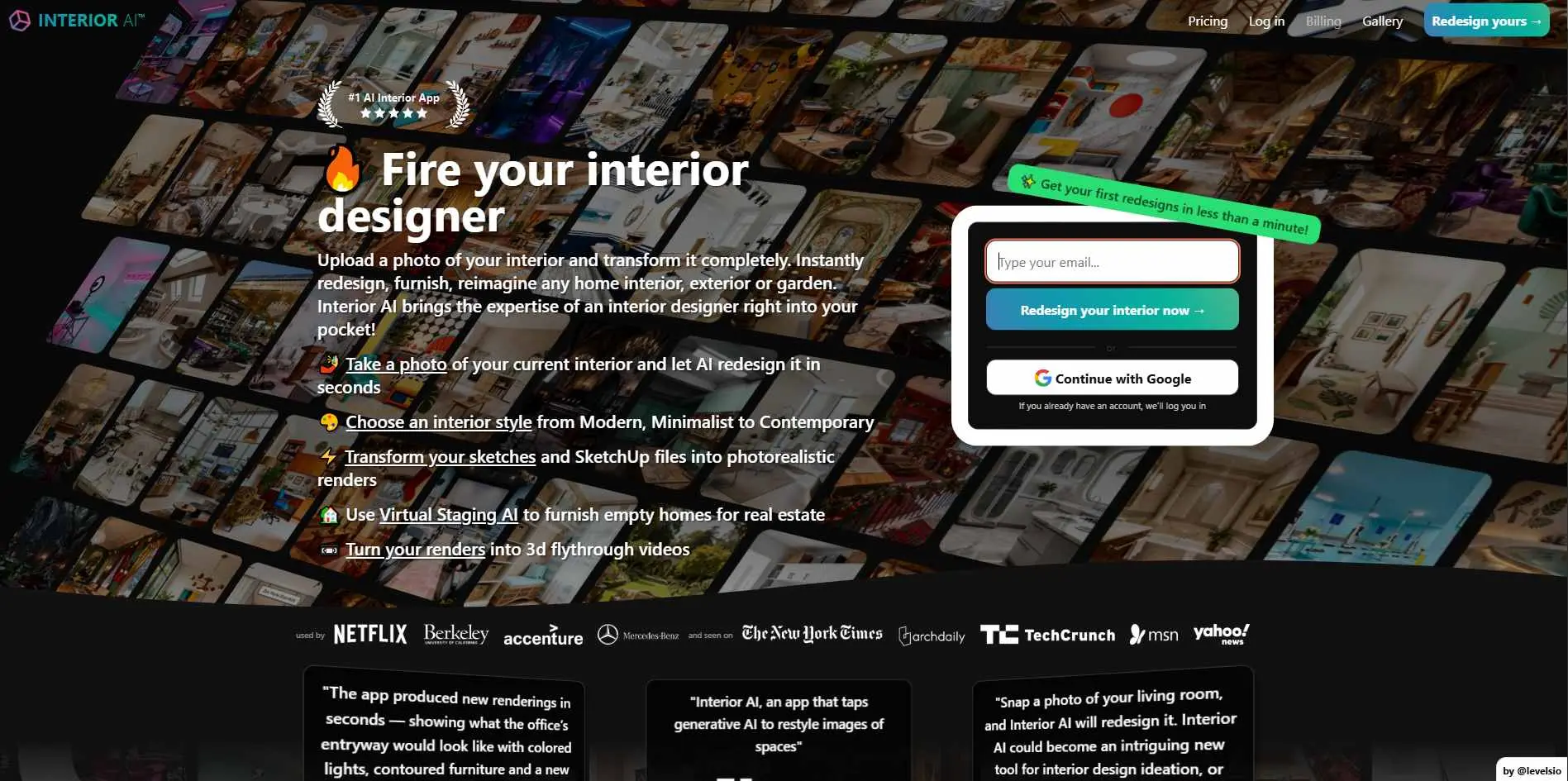
Upload a photo, choose a style, get a render. Interior AI has one of the largest style libraries here and handles empty rooms better than most. If you've moved into a new place with bare walls, it's a reasonable way to test directions before buying anything.
Key Features:
- 40+ interior design styles
- Works on both furnished and empty rooms
- Fast generation with multiple output options
- Solid handling of natural light in renders
Best for: Homeowners exploring multiple style directions at once before narrowing down.
Limitation: No manual prompt interface. You pick from presets, so you can't fine-tune outputs the way Spacely allows.
6. Planner 5D
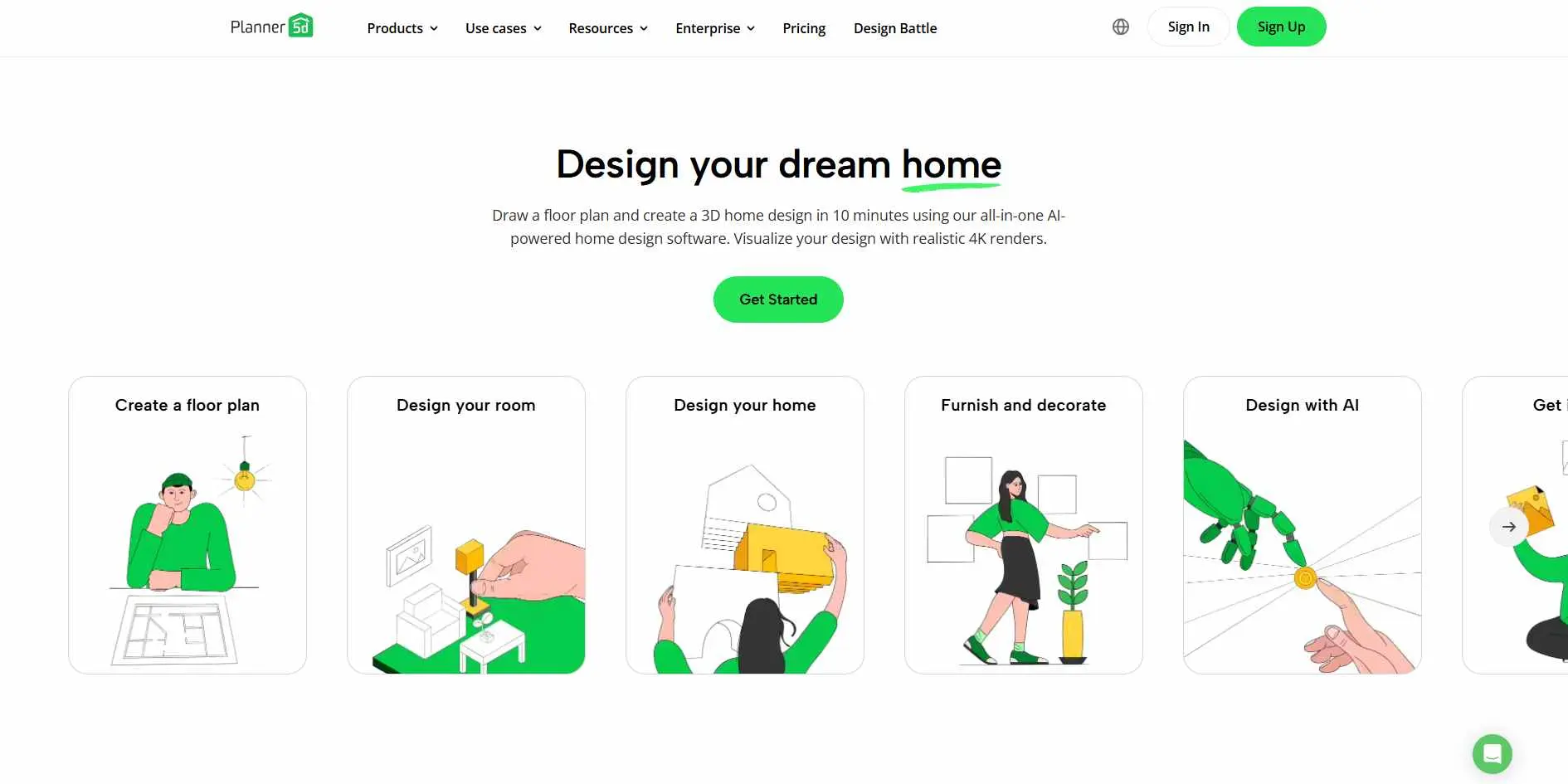
Planner 5D is basically a "two-birds-one-stone" situation. It bundles floor planning and AI rendering into one spot. Just, setup is sketch-first, draw the space, place your furniture and finishes, let the AI build out the 3D visuals. It's slow, and it'll take a couple of sessions before the interface stops feeling awkward - but running the whole thing from one tool does cut down on back-and-forth.
Key Features:
- Combined floor plan editor and AI visualization
- Smart wizard for room layout suggestions
- Material and furniture customization
- iOS and Android apps available
Best for: People planning a room from scratch who want layout and styling in one place.
Limitation: The AI render quality lags behind dedicated render tools. Use it for planning, not for polished client visuals.
7. DecorMatters

DecorMatters uses AR to place real furniture into your actual space through your phone camera - less about renders, more about pre-purchase verification. The AR is worth calling out. Point your phone at your living room, pick a sofa from the catalog, and it appears in your space at the right scale. That's genuinely different from everything else on this list.
Key Features:
- AR-based furniture placement in live camera view
- AI style recommendations from room photos
- Real product links for items shown
- Community gallery for browsing real room setups
Best for: Shoppers who want to see how actual, buyable furniture fits their room before ordering.
Limitation: The AI styling side is weaker than tools built specifically for renders. The real value here is the AR placement.
8. Gepetto
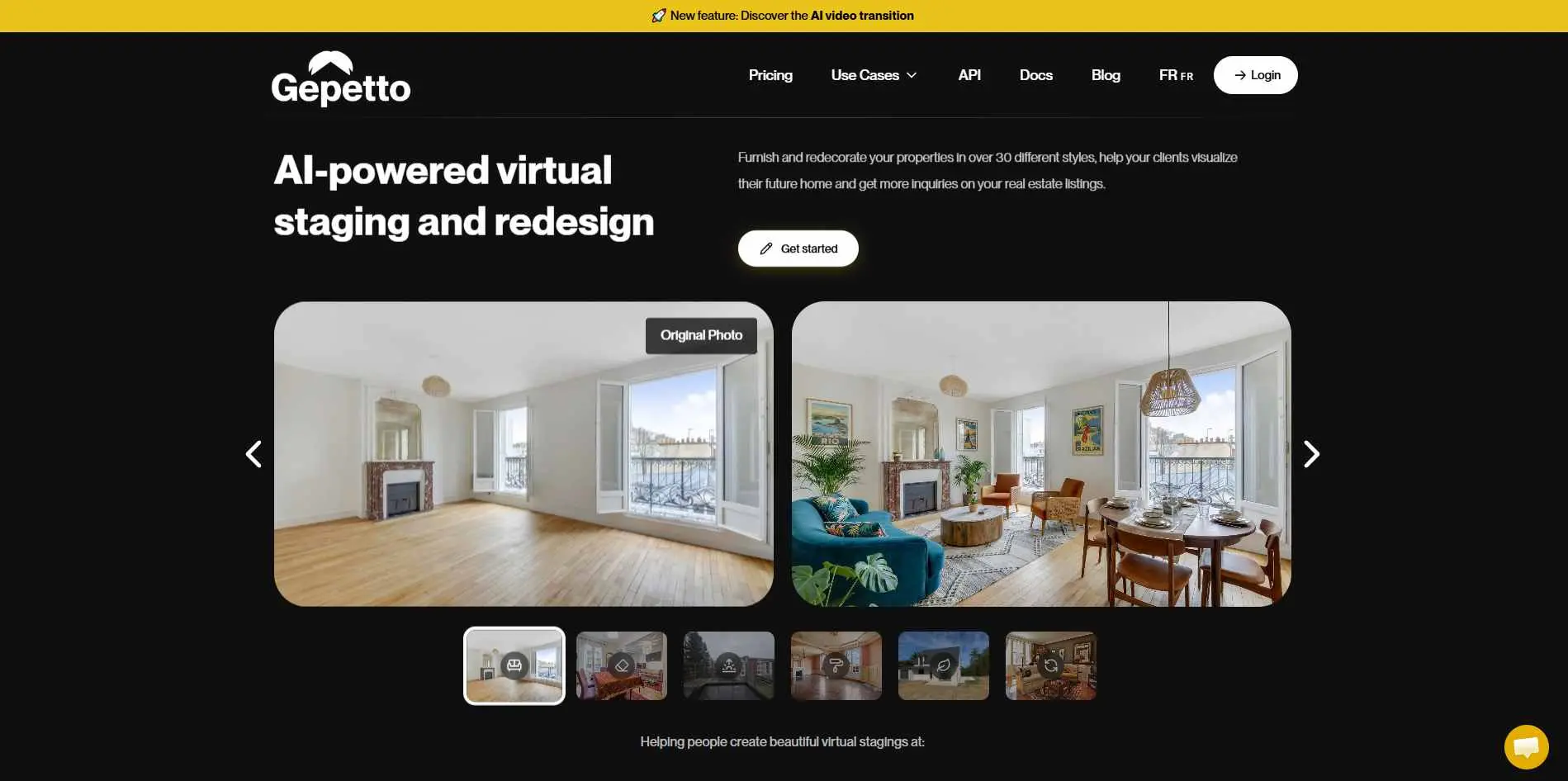
Gepetto is newer and less established than the others, but it handles office and commercial spaces better than most competitors. Most tools in this category are built with residential rooms in mind - Gepetto is one of the few that accounts for how offices actually function, with open-plan layouts, workstation density, and meeting areas. Worth watching.
Key Features:
- Office and commercial space design support
- Multiple render styles for professional presentations
- Prompt-based redesign from uploaded photos
- PDF export for stakeholder presentations
Best for: Small business owners and office managers who need a presentable concept before pitching a renovation.
Limitation: Smaller style library than the larger tools. You'll hit its ceiling faster.
9. RoomDeco AI
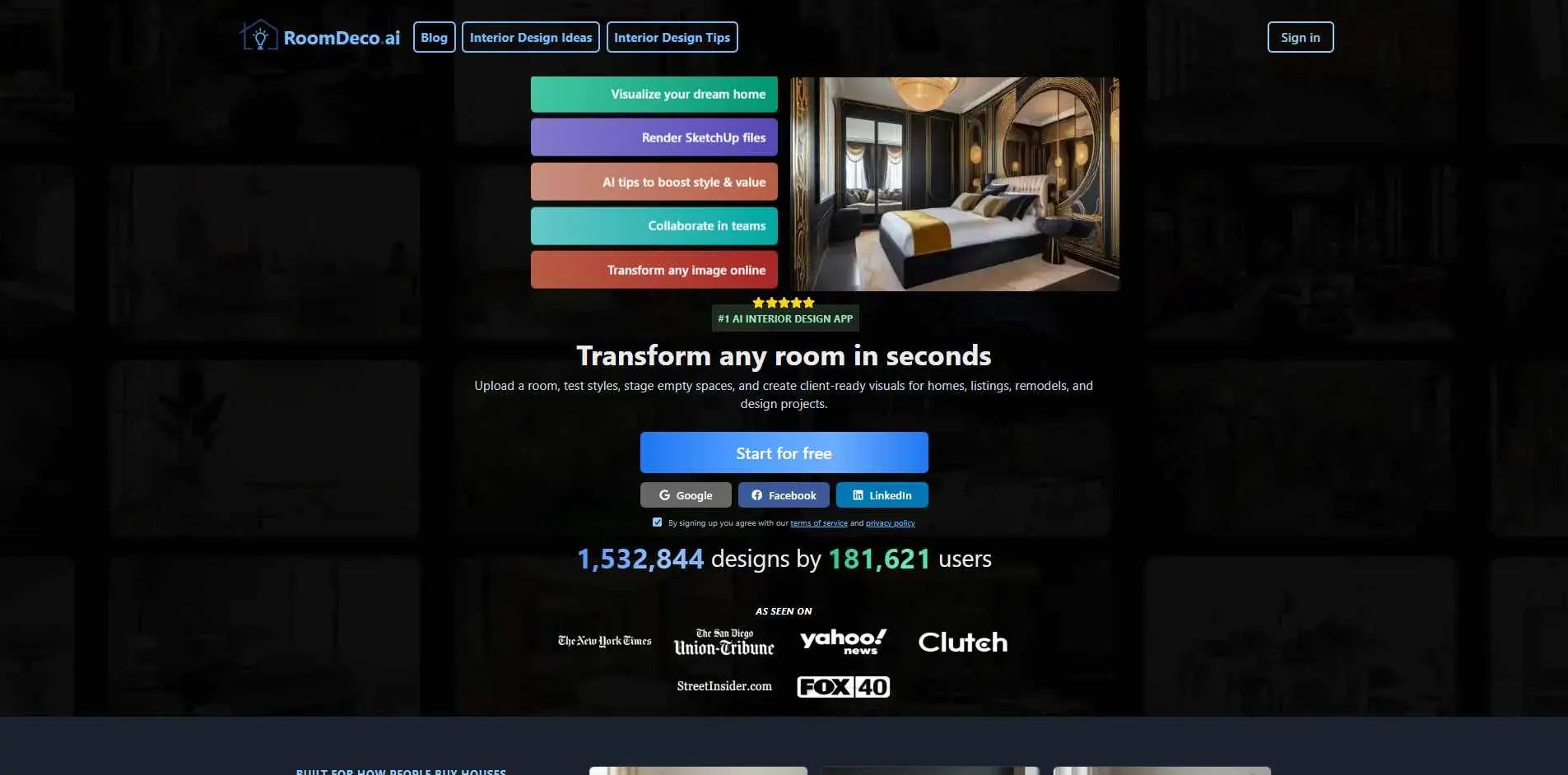
Upload a photo, describe what you want, get a render. RoomDeco is a clean middle ground between RoomGPT's simplicity and Spacely's depth. You use it when you have a rough idea and want to push it somewhere without starting a full design process. It's quick, and it produces something usable often enough to be worth trying.
Key Features:
- Photo upload plus text prompt input combined
- Multiple style outputs per session
- High-resolution render export
- Budget-friendly pricing compared to most alternatives
Best for: Renters and homeowners doing quick exploratory work before a design consultation.
Limitation: No AR, no product linking, no floor plan support. It renders. That's it.
10. Homestyler
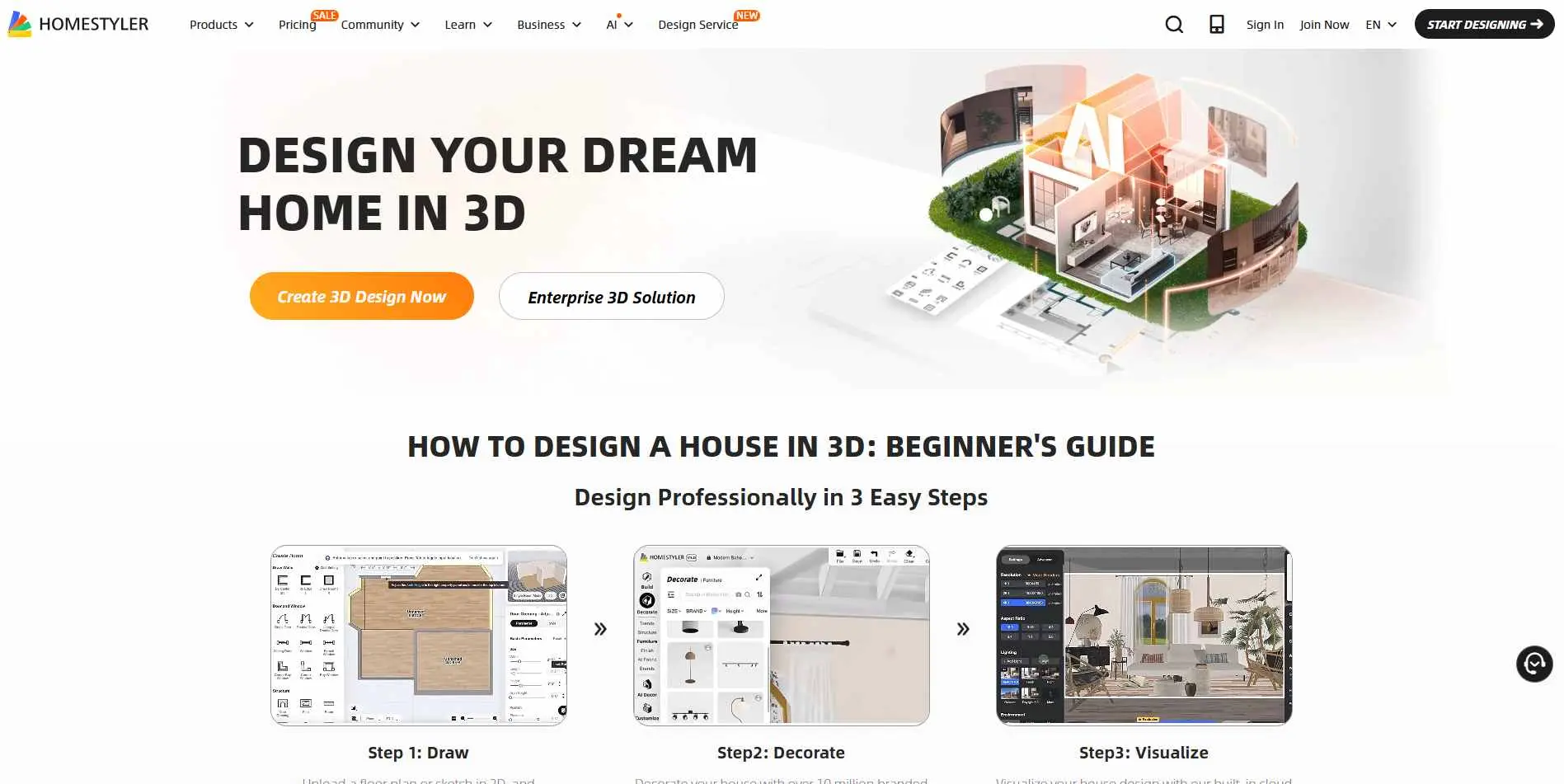
Homestyler has grown into a fairly complete design suite. Floor plan to 3D model to rendered room, all in one place, with a real furniture catalog from actual brands attached. It's been around longer than most tools on this list, and that shows - the interface is more polished, render quality is more consistent, and the catalog is large enough to actually shop from.
Key Features:
- Floor plan editor with AI-assisted room detection
- Photorealistic 3D rendering
- Branded furniture catalog from real manufacturers
- Collaboration tools for team projects
Best for: Designers, architects, office planners, and anyone who needs client-ready visuals without switching between multiple platforms.
Limitation: It won't help you shop or build an execution plan after the render. You'll need to work backwards from the image yourself.
AI Interior Design For Renters: What Actually Works
If you rent, you're working under real constraints. No repainting, no structural changes, no built-in shelving you can't remove. A render showing a freshly painted feature wall is useless to you.
The good news is AI tools can be directed specifically toward renter-safe redesigns. When prompting, include phrases like:
- "no paint changes, existing wall color retained"
- "removable wallpaper accent wall"
- "freestanding furniture only, no built-ins"
- "renter-friendly, no structural modifications"
VisualizeAI is one of the few tools that addresses this structurally. It keeps your original photo's background intact and only touches the furniture and decor layers. For renters especially, that's the more honest workflow - upload the actual room, tell it to leave the walls and flooring alone, and test what different arrangements can do.
This approach also works for furnished rentals - you can test how a rug, floor lamp, or set of curtains would change the feel of a room before spending anything.
Free vs. Paid: What You're Actually Getting
Most people assume free tools are just limited versions of paid ones. That's not quite right - the gap is more specific than that.
Feature | Free Tier | Paid Tier |
| Renders per month | 3–10 (most tools) | Unlimited or high-volume |
| Export resolution | Low–medium | High-res (print/contractor ready) |
| Commercial use rights | No | Yes (most paid plans) |
| Style options | 10–20 presets | 50–75+ styles |
| Negative prompts / exclusions | Limited | Full access |
When free is enough: You're exploring styles, testing a concept, or redesigning one room for personal use.
When to pay: You need a render for a client presentation, contractor handoff, or real estate listing. Resolution and commercial rights matter at that point.
For most homeowners doing a single room refresh, the free tier of one or two tools is more than adequate. Start there.
The Render vs. Reality Gap (And How to Avoid Costly Mistakes)
This is the most important thing no one warns you about: AI renders are directional, not literal.
When an AI tool shows you a marble countertop or a herringbone hardwood floor, it's showing you a style approximation - not a product match, not an accurate material simulation, and definitely not a to-scale representation of your actual room dimensions.
The most common mistakes people make after getting a render:
- Ordering furniture based on how it looks proportionally in the render (AI tools frequently distort scale)
- Assuming the lighting in the render reflects how a room will look in real life
- Treating the render as a shopping list and buying the first matching product they find
Use renders to answer one question at a time: Does this style direction feel right? Once you've answered yes, step out of the AI tool and do the real planning work - measure your room, identify actual products, and verify dimensions before buying.
For lighting specifically, AI tools are weakest. Use the render as a mood guide - warm vs. cool, ambient vs. directional - then consult a lighting chart or a specialist to translate that into actual fixture placement.
[ALT: Side-by-side image of AI render vs. real completed room showing where they differ]
Room-by-Room: Where AI Tools Work Best (and Where They Struggle)
Living rooms are where AI tools shine. Large footprint, lots of furniture variation, relatively forgiving proportions.
Bedrooms work well too, especially for exploring color palette combinations without committing to paint.
Kitchens are tricky. AI tools frequently add appliances you didn't ask for, change cabinet finishes unpredictably, or ignore your existing layout entirely. Be very specific in your prompt and treat the result as inspiration only.
Home offices are underserved by most tools. If you’re trying to map out an office, skip the basic photo-upload apps and head straight for Planner 5D. It’s much more reliable for handling actual spatial constraints and making sure your workstations actually fit where you think they will.
Small spaces and studio apartments are the real headache comes with tiny spaces like studio apartments with the biggest challenge. AI over-furnishes small rooms by default - pieces get crammed in that wouldn't physically fit. If that's a problem, three things help: labeling it a small room, dropping in the exact dimensions, and specifying space- saving furniture in the prompt.
Pro tip: take your reference photo from the furthest corner of the room - it gives the AI the wide-angle view it needs to actually understand the scale of the space.
AI Tools vs. Human Designers: How to Decide
It’s easy to think of AI and human designers as competitors, but they really solve two different sets of problems.
Think of AI tools as your "fast-forward" button for the early stages. They’re unbeatable for rapid-fire visual exploration-you can cycle through ten different styles in a single afternoon just to see what sticks. If you’re on a tight budget or just need a rough "vibe check" before committing to a direction, AI is a total game-changer.
AI-first workflows are reshaping creative work more broadly - if you're also working on a brand identity alongside a renovation, AI logo generators follow the same prompt- driven, fast-iteration model with comparable speed advantages.
But when things get serious, you still need a human. AI can’t do a site visit, feel the weight of a fabric sample, or give you actual structural advice that won't fall down.
A human designer is there for the heavy lifting: coordinating with contractors, catching mistakes in real-time, and-most importantly-taking accountability for the final result. AI gives you a picture; a designer gives you a finished room.
How to Execute After the Render
Getting a render you like is step one. Here's what comes next:
1. Lock in the style direction - pick one render you'd actually live in, not the most dramatic one
2. Make a materials list - identify the 5–6 key elements: flooring, wall color, sofa, lighting, accent pieces
3. Find real-world equivalents - search for each item by describing it, not by screenshotting the render
4. Verify dimensions - before buying anything large, measure your room and check product specs
5. Execute in order - structural changes first, then paint, then large furniture, then lighting, then accessories
This order matters. Placing furniture before painting means you'll almost always need to move everything twice.
If you're using AI tools for other parts of your work beyond home planning, this roundup of AI tools for productivity covers what's worth adding to your stack.
The Bottom Line
The best AI interior design tools for home and office planning in 2026 are genuinely useful - but only if you know how to use them. A specific prompt beats a vague one every time. Renders are starting points, not shopping lists. And free tiers are enough for most personal projects.
Start with one room, one tool, and one clear style direction. Get a render you believe in. Then close the laptop and measure your space.
That's how AI interior design actually works.