 Table of Content
If you deal with PDFs regularly, you already know how fast a “quick task” turns into a mess. Merge a few files, zip them up before emailing, maybe fix a stray typo or convert something to Word - and suddenly twenty minutes are gone. None of that should be hard, but without the right tool it eats time.
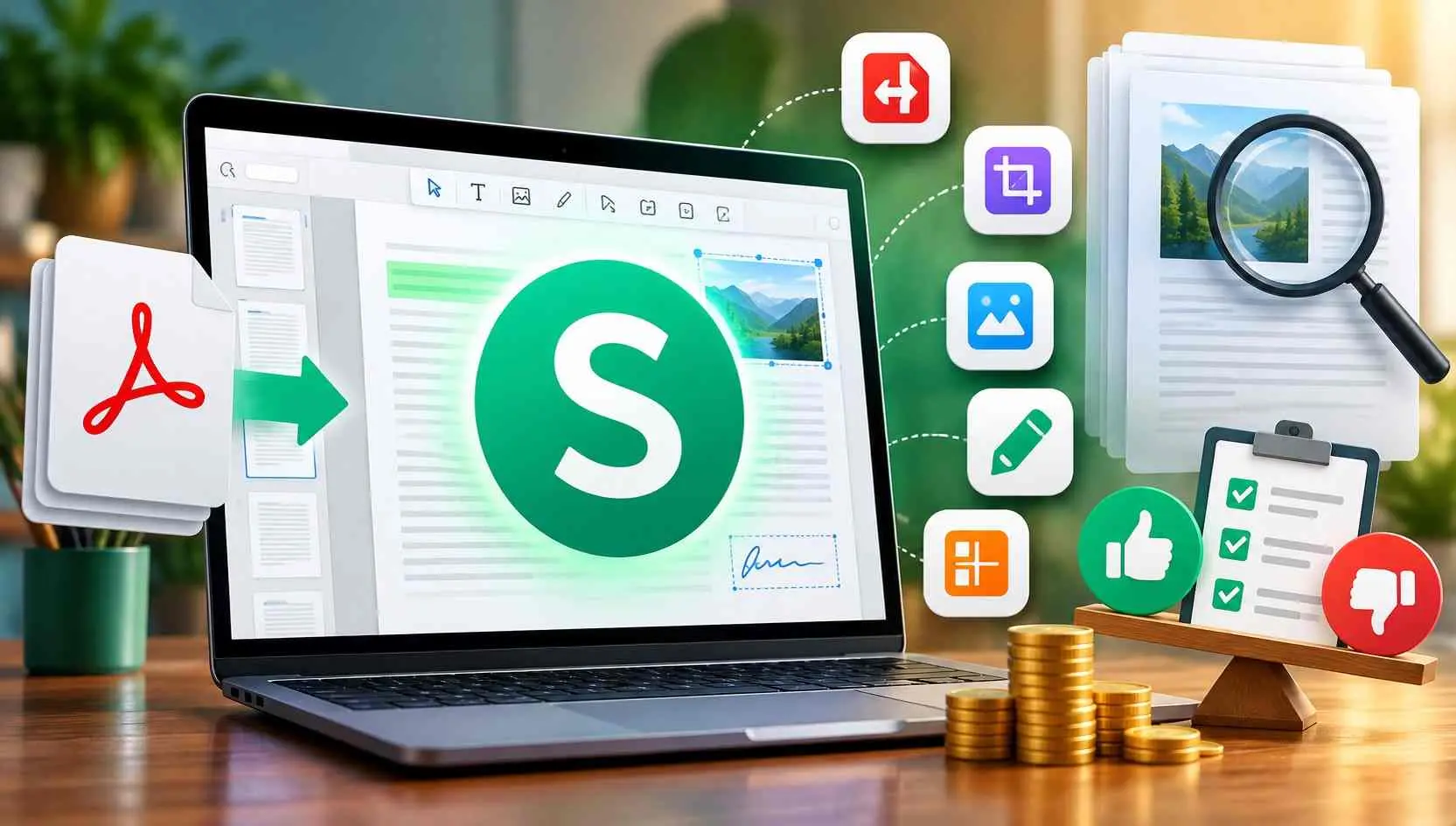
Sejda PDF is one option. It’s an online PDF toolkit with a large collection of utilities in one place, plus a desktop app for people who’d rather process documents on their own computer.
A long list of tools doesn’t make a PDF platform good, though. It comes down to how easy the tools are, what’s free, what the paid plans actually cost, and whether it fits the kind of documents you deal with day to day.
Is Sejda PDF worth it in 2026? Here’s the breakdown - features, pricing, limits, privacy, and what it’s actually like to use day to day.
What is Sejda PDF?
Sejda PDF is a set of online and desktop tools for working with PDFs. You can edit, convert, compress, merge, split, sign, and secure files, among other things. There are more than 30 tools in total, covering editing, compression, conversion, OCR, forms, signatures, watermarks, and password protection.
The web tools need no installation. Open the site, pick a tool, upload your document, and go.
Sejda Desktop is available for Windows, macOS, and Linux. It processes files locally, which helps when a document shouldn’t be uploaded to an online service.
Sejda PDF Review: Our Rating
After going through the platform, we’d give Sejda PDF 4.4 out of 5.
1. PDF Editor
The editor is the main reason to try Sejda. You can add text, edit existing text, insert images and links, highlight content, add shapes, annotate pages, and fill out forms. There’s also basic find-and-replace.
For an occasional fix, that’s plenty. You probably don’t need a full desktop PDF application just to correct a sentence or drop in an image.
One limit: scanned PDFs are different. Existing text in a scan can’t be edited the way text in a normal, text-based PDF can.
2. Merge PDF Files
Need to combine several PDFs into one? Sejda’s Merge PDF tool handles it without fuss. You can combine multiple PDFs and images, rearrange them, and choose which pages to include. It can also generate bookmarks and add file names to page footers.
That helps with reports, invoices, contracts, assignments, or anything else scattered across several files.
3. Split PDF Files
Sometimes it is the reverse, there is one big PDF and you only need parts of it, certain pages. The Splitter breaks a document apart however you need - by page range, bookmarks, file size, or text. Upload it, pick your method, run it, download the results.
4. Compress PDF
Large PDFs are a pain when you’re emailing them or uploading them to a website. Sejda’s Compress PDF tool shrinks the file and lets you control image quality and resolution.
You don’t have to understand PDF optimization to use it. Choose your settings, compress, done. For everyday users it’s one of the more useful features.
5. Convert PDF to Word and Other Formats
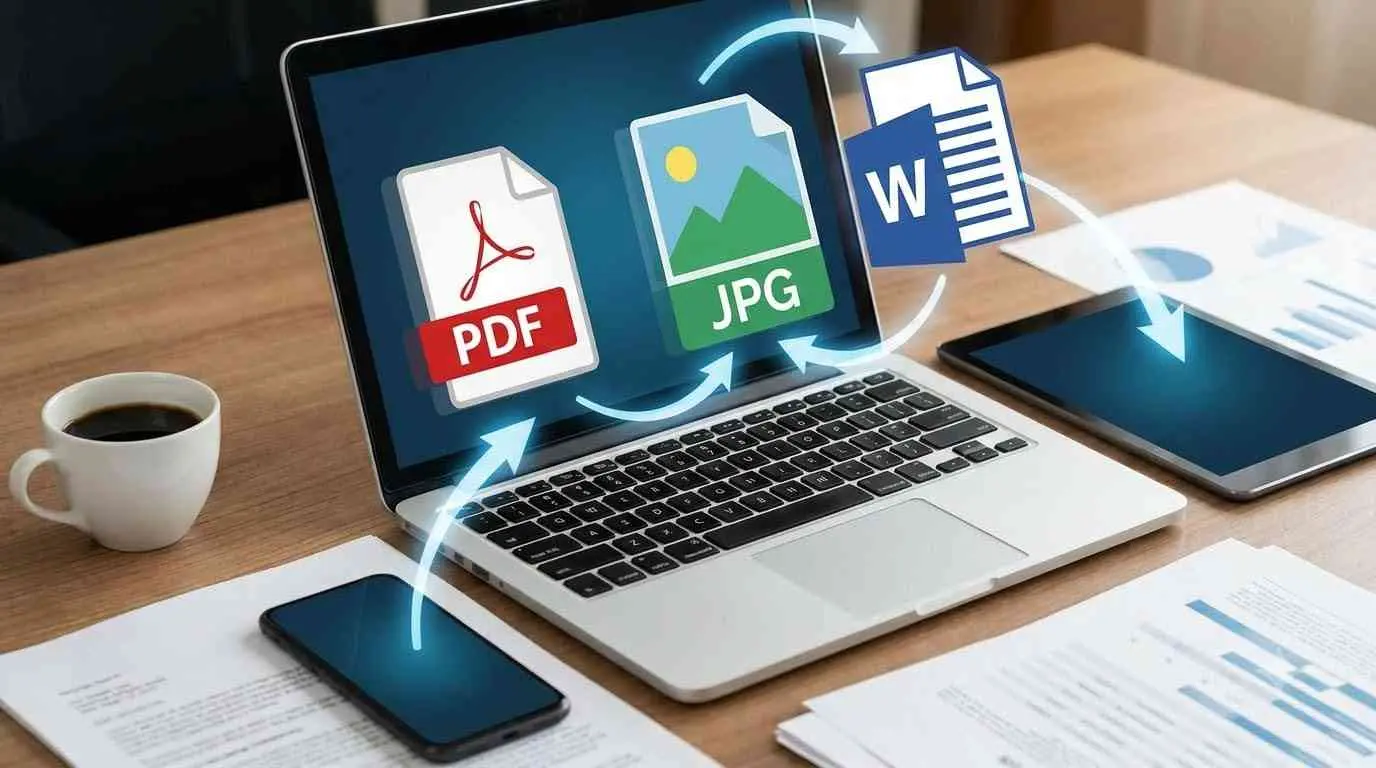
PDF-to-Word conversion is another common reason people go looking for online PDF tools. Sejda has a PDF to Word converter plus other options: Excel, PowerPoint, JPG, and text. Several formats also work in reverse, including JPG to PDF and Word to PDF.
That range makes it more useful than a tool focused only on editing.
6. Fill and Sign PDF Documents
Sejda can also do basic filling and signing of forms. You can even text your name, draw a signature, or upload an image, and then drag it where you need it. That saves you the print, sign and scan routine for simple forms, approvals, and everyday paperwork.
Sejda doesn’t guarantee that signatures made with its tool are legally binding, though. If legal requirements matter, use a dedicated e-signature service instead.
7. OCR for Scanned Documents
Sejda includes OCR, or optical character recognition. It’s for scanned PDFs, where the pages are images rather than selectable text. OCR turns scanned pages into searchable text, which makes old documentation and paper records a lot less painful to dig through.
If you only need to pull text from a single picture, a dedicated tool to extract text from a JPG image might be a quicker alternative.
Free users hit usage caps pretty fast, so if you’re processing scans in bulk, you’ll probably end up needing a paid plan.
8. PDF Security Tools
Sejda provides a few PDF protection and preparation tools in a single link. You can set passwords and permissions, unlock, watermarks, and flatten documents. Flattening is handy when you want form fields or annotations to become read-only.
Be careful with the whiteout feature. Whiteout isn’t proper PDF redaction. Hiding something visually doesn’t necessarily remove the underlying information, and that matters if the document is confidential or sensitive.
Is Sejda PDF Free?
Yes, with limits. The free version works well for occasional PDF jobs, and for many tools you don’t need an account.
The catch is the usage restrictions. The online PDF editor currently allows free documents of up to 200 pages or 50 MB, with a limit of three tasks per hour. Other tools have their own limits.
If you edit or compress a PDF now and then, that probably won’t matter. If you’re processing documents all day, you’ll hit the limits fast.
Sejda PDF Pricing
If you need more than the free version allows, there are paid options. At the time of this review, the listed plans include:
- Web Week Pass: $5 for seven days
- Web Monthly: $7.50 per month
- Desktop + Web Annual: $63 per year
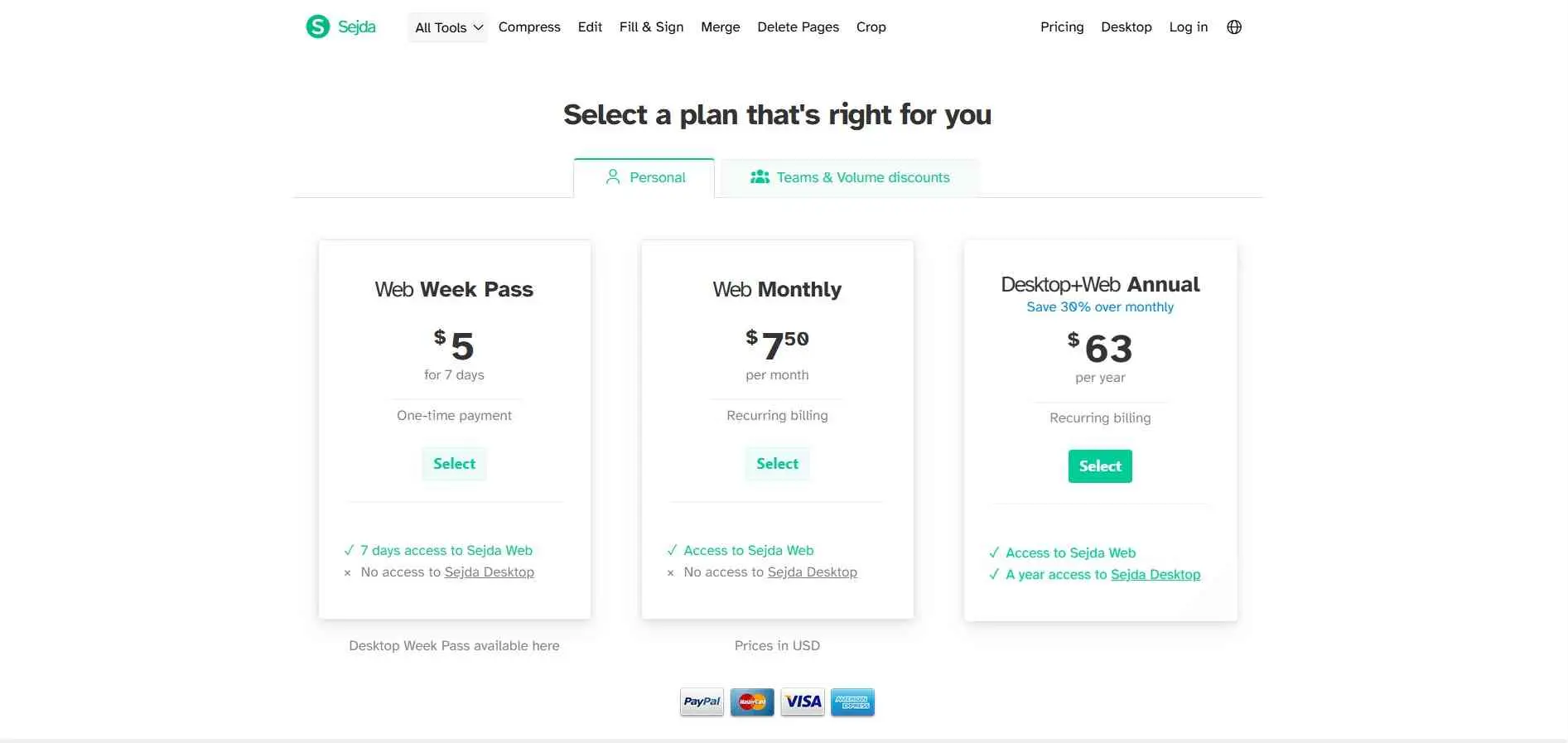
Paid plans give you higher usage limits, larger files, batch processing, and more processing time. Paid users can work with files up to 500 MB each.
The weekly pass is a smart idea. Not everyone needs a PDF service all year. If you’re on a short-term project and suddenly need lots of PDF tools, seven days for $5 beats signing up for something longer.
Sejda PDF Online vs Sejda Desktop
Many browser-only PDF tools stop at the browser. Sejda also has a desktop app.
Sejda PDF Online
The online version is convenient. There’s nothing to install: open the website, choose a tool, upload your file, process it. For quick jobs it’s probably the easiest way to use Sejda.
Sejda says files uploaded to its online services are automatically deleted after a set period. Its PDF editor currently states that uploaded files are deleted after two hours.
Sejda Desktop
The desktop app is a better fit if you’d rather keep documents on your computer. Sejda says it processes files locally, so documents don’t have to leave your machine. It’s available for Windows, macOS, and Linux.
That’s useful for confidential business documents, legal paperwork, or anything else you’d rather not upload to a web service.
Is Sejda PDF Safe?
For normal PDF work, Sejda offers a few privacy options. The company says its online service uses encrypted connections and automatically deletes processed files. If you’d rather not upload a document at all, the desktop app is the local alternative.
Still, think about the document in front of you. For highly confidential information, the desktop version is the more sensible choice. No online PDF service is the right place for every sensitive file.
And keep the whiteout-versus-redaction difference in mind. To permanently remove confidential information from a PDF, covering it up isn’t enough.
Sejda PDF: Pros and Cons
Pros
- More than 30 PDF tools
- Online PDF editing
- PDF merging and splitting
- PDF compression
- OCR support
- Password and PDF security tools
- Desktop application
Cons
- Free usage limits can be restrictive
- Different tools have different free limits
- Some advanced professional features are missing
- Scanned PDF editing has limitations
- Whiteout isn’t a replacement for proper redaction
- Online processing may not be suitable for highly sensitive documents
Who is Sejda PDF Best For?
Sejda isn’t built for one type of user. The mix of simple tools suits a fairly broad crowd.
- Students: Students can combine assignments, compress files before submitting, extract pages, convert documents, and annotate course material.
- Small Businesses: Small businesses can handle routine PDF work such as invoices, proposals, reports, forms, and contracts.
- Freelancers: Freelancers who swap documents with clients regularly can use the editing, signing, compression, and conversion tools.
- Office Professionals: If PDFs are part of your daily workflow but you don’t need a complex enterprise document system, Sejda covers most of what you’re likely to run into.
- Privacy-Conscious Users: The desktop version is the draw here. Processing documents locally is a real option when you don’t want files uploaded to a web app.
Who Should Look for a Sejda PDF Alternative?
Sejda’s not trying to be everything. It’s great for the stuff most people actually need day to day - once you’re talking real document management, layered approval chains, automated workflows, legit e-signatures, you’ve outgrown it. Nothing wrong with that. Just means you want one of the bigger enterprise platforms instead.
Heavy users who process hundreds of large documents a day may also find the free version too restrictive. If that’s you, compare Sejda’s paid plans with competing PDF tools.
For everyday tasks, though, Sejda offers plenty without making things complicated.
Sejda PDF vs Other PDF Tools
Sejda competes in a crowded market with names such as Adobe Acrobat, Smallpdf, iLovePDF, and PDF24. Its edge isn’t having every advanced feature. It gives you a broad set of practical tools in an interface that’s fairly easy to understand. Online tools, desktop software, a free tier, specialized utilities - stack it all up and you get a genuinely flexible setup.
If you’re just merging a couple of PDFs or compressing a file now and then, the free version probably covers you. If PDFs are part of your actual workflow, the paid plans or desktop app start making a lot more sense.
Final Verdict: Is Sejda PDF Worth It?
After going through the features, limitations, and pricing, would we recommend Sejda PDF? Yes, for most everyday PDF tasks.
There is so much that can be done on a basic platform. You have tools to edit, convert, compress, merge, split, OCR (optical character recognition), sign and encrypt PDFs - everything you need without needing to jump between a dozen services.
If you plan on using it only from time to time, the free version will probably cover you. Heavy users will hit the limits faster, but the paid tiers are flexible - there’s even a weekly pass if you just need it for one project. The desktop app is a real plus too, especially if you don’t want sensitive documents leaving your own machine.
Students, freelancers, small businesses, anyone who just wants PDF tools without installing a bloated suite - Sejda fits that crowd well.
Our Verdict: 4.4/5
If you regularly edit, convert, compress, merge, split, or sign PDFs, Sejda is worth trying. Occasional users may get by on the free version. Heavier users should look at the paid plans.