 Table of Content
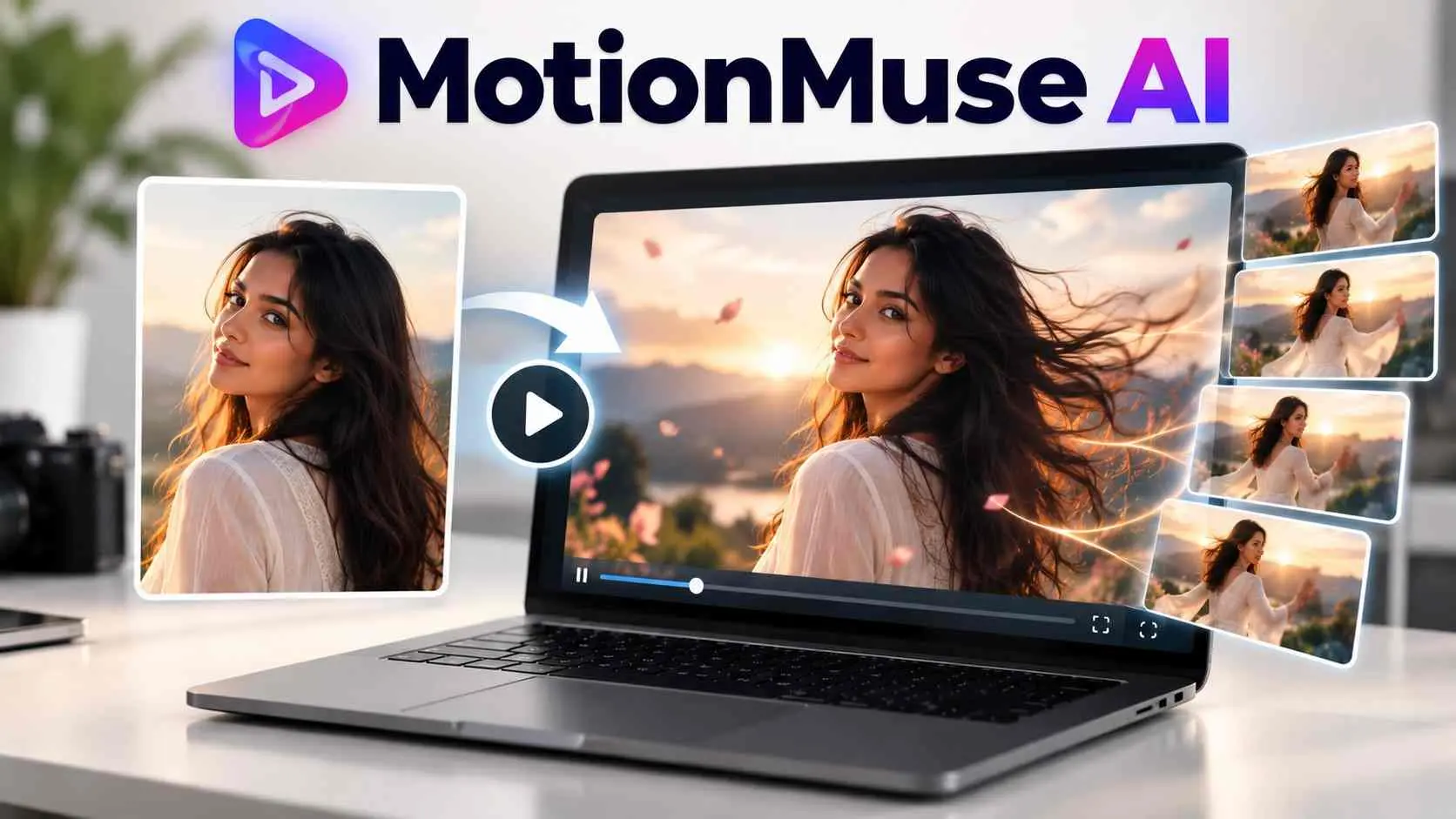
MotionMuse AI takes a still image and turns it into a short four to six second video clip. Just upload your picture, pick any template or write a quick prompt, and wait for the render.
Our verdict: it’s cheap and simple, but the pricing gets expensive fast and the trust signals are mixed. If you just want a few clips for social posts, the free credits cover a test run at no cost. Anyone who needs longer or more controllable video should jump to the alternatives. MotionMuse suits hobbyists and small creators more than editors who need precise control.
One note on sourcing: I haven’t run my own batch of generations for this piece. Everything below comes from the tool’s public pricing and feature pages, plus third-party scanners and reviews. Where claims conflict, I say so.
What is MotionMuse AI?
MotionMuse AI animates still images easily without requiring any scripts or finished scenes at all. You just start with a picture and tell the tool how it should move.
a creator can upload a portrait and ask for a subtle camera push or pick a template for something more stylized. The software quickly makes a short video using just that one picture and your simple typed prompts. That makes it handy for social media creators, digital artists, and anyone experimenting with AI visuals. As AI continues to change content marketing, tools like this help streamline early-stage visual production.
It isn’t a general-purpose video generator, though. The core workflow is image animation, and that’s where it stops. A promotional video with narration, several scenes, transitions, subtitles, and a storyline will need other software.
How It Works
The workflow is short:
- Sign up and collect starting credits. The pricing page lists 20.
- Upload an image or choose a template.
- Add a custom prompt or pick a preset animation style.
- Click Generate.
- Download the clip or share it.
The homepage promises results in “4-6 seconds.” We read that as clip length, not render time, since the same page describes the output as 4 to 6 second videos. Real wait times depend on your plan. Paid tiers get queue priority: Premium over Pro, Pro over Basic, Basic over free users.
We’d expect the Telegram bot to follow the same flow inside a chat window: send an image, choose a style, get the clip back as a message. That should be faster for one-off tests, though we couldn’t confirm how much control or history it gives you compared with the web app.
Keep prompts plain. Describe one motion at a time, like a slow zoom or a head turn. Stacking several actions into a five second clip tends to produce mush in most image-to-video tools, and we wouldn’t expect this one to be different.
Key Features
- Template library: Paid plans unlock every template. The pricing section says new ones arrive daily, while the benefits list says weekly, so don’t count on a release schedule.
- Custom prompts: You upload the image and describe what should move. Useful when templates start to feel samey.
- 450+ AI models: The homepage claims this number but never says whether they’re styles or separate engines, or how you choose one. Treat it as marketing until you see the model picker.
- AI training tools: Listed on paid plans with no explanation, so we can’t reviewed them.
- Output specs: The page says nothing about resolution or audio, and nothing about vertical formats like 9:16. That matters if your clips are headed for Reels or Shorts.
- Best fit: People who want a result without writing prompts, like animating a product photo or an old portrait of their own. It’s a poor fit if you need a specific camera path or the same character across several clips.
MotionMuse AI Pricing

These are the prices from the third-party site, shown as discounts off $12.99, $24.99 and $49.99.
Plan | Price | Credits | Output | Per video |
| Free | $0 | 20 | Trial | n/a |
| Basic | $9.99 | 500 | 10 videos or 33 images | ~$1.00 |
| Pro | $19.99 | 2,500 | 50 videos or 166 images | ~$0.40 |
| Premium | $39.99 | 10,000 | 200 videos or 666 images | ~$0.20 |
Confirm them on the official page, and be skeptical of crossed-out original prices. Permanent “sale” pricing is an old trick.
The math is simple. Videos cost 50 credits and images cost about 15. If that rate holds on the free tier, the 20 signup credits buy one image and no videos. Cost per clip drops sharply as you move up, which nudges you toward Pro. At roughly a dollar per clip, Basic gets pricey if you need several attempts to land a good result.
Paid plans share the same perk list: all templates and AI training tools. Beyond queue priority, the main difference is credit count, so you’re mostly buying volume.
Start free. If the output looks usable, Basic is enough for a proper test of ten clips. Move to Pro only once you know your hit rate, meaning how many attempts it takes to get a clip you’d post. If you need three tries per keeper, Pro’s 50 videos gives you about 17 finished clips. Run that math before you pay.
On the refund side, user complaints mention non-refundable credits. The site says no credit card is needed for the trial and that you can cancel anytime. Payment options include PayPal, cards and crypto.
Pros and Cons
Pros:
- Low entry price
- Simple workflow with no editing skills needed
- Free credits and a Telegram bot for testing
- Priority queue on paid plans
Cons:
- Clips capped at 6 seconds
- Heavy credit use: 50 per video
- Little public detail on who runs it
- Conflicting trust signals
- Vague specs on resolution and the “450+ models”
The pros are real but small. Nothing on that list is unique, and larger competitors cover most of it. The cons matter more, because the transparency gaps affect whether you should hand over money at all.
Is MotionMuse AI Safe and Legit?
The scores conflict. Some aggregators rate motionmuse.ai 86 to 95 out of 100 with no warnings. One gives it a poor 25% trust score because the domain is young. A separate security scan called it suspicious at 55 out of 100, citing one malware detection and complaints about non-refundable credits.
Our Take: this probably isn’t a take-the-money-and-vanish operation, but it’s unproven. If you pay, use PayPal or a card with chargeback protection, and skip crypto.
Privacy is the other question. The third-party site says MotionMuse collects minimal data and doesn’t sell it, but that’s not the product’s own policy. Read the real one.
Before you pay, check four things: the domain in your address bar, the company name in the terms, the refund policy, and where the privacy policy says your uploads are stored and for how long. If any of those is missing or vague, stop.
Consent matters most. The tool reportedly requires users to be 18 or older and bars videos made from other people’s photos without permission. Only upload images you own or have clear permission to use. Animating a real person’s photo without consent is a legal problem in a growing number of places, and no free clip is worth that risk.
MotionMuse AI Alternatives
Features and prices for these tools change often, so check current plans before paying.
Tool | Best for | Trade-off |
| Runway | Fine control over motion | Steeper learning curve |
| Pika | Quick social effects | Quality varies |
| Luma Dream Machine | Natural camera movement | Limited free use |
| Kling | Realism and longer clips | Slower at peak times |
| Google Veo | High-fidelity output | Tied to Google plans |
If you want fine control, start with Runway. For quick social clips, Pika is easier. Kling suits longer, more realistic shots, and Google Veo makes sense if you already pay for a Google AI plan. The bigger difference from MotionMuse is transparency. These companies name their owners and publish specs, and independent reviews are easy to find.
None of these is a perfect swap. MotionMuse’s template approach is simpler than Runway’s toolset, so if simplicity is why you’re considering it, try Pika first.
If your real goal is cutting long videos into short social clips, a dedicated AI clip generator fits better than any image animator.
Final Verdict
MotionMuse AI does one thing pretty well. It turns a still image into a short animation without requiring any messy editing workflow. You just drop in a photo, pick a quick template or type what you want, and grab your clip in minutes. The free starter credits let you actually test it out before spending real money. It keeps everything fast and straightforward.
The limits show up fast. Clips run only a few seconds, so longer projects are out. Retries burn credits fast, and a usable clip often takes several attempts. That pushes the real cost per video well above the sticker price. The pages also say little about resolution, audio, or vertical formats.
Trust is the other catch. Several similarly named sites exist, and some are third-party pages rather than the product itself. Confirm you’re on the right domain and read the refund terms before paying.