 Table of Content
You have two scanned contracts that need to be one file. Or a deck that`s too big for Gmail. Or a PDF your manager wants back in Word by five. iLovePDF is usually where that ends up. It runs in the browser, so there`s nothing to install, and that`s most of the pitch.
The rest is that it does a lot of small jobs without making you think about them. That sounds minor until you`ve spent an afternoon fighting a "free" converter that wanted your email, a credit card and a newsletter signup before it would touch one file.
iLovePDF at a Glance
Category | iLovePDF overview |
| Core focus | Everyday PDF work: conversion, compression, basic edits |
| Platforms | Web browser, Windows and macOS desktop, iOS and Android |
| Free tier | Yes. Everything works, but each task has size and volume limits |
| Premium pricing | $5/month billed annually ($60/yr), or $7/month billed monthly |
| Core utilities | Merge, split, compress, convert (Office and images), organize, crop, rotate |
| Advanced | OCR, digital signatures (iLoveSign), redaction |
| AI features | Summarization and translation, with AI credits on Premium |
| Cloud integrations | Google Drive, Dropbox |
| Offline use | Windows and macOS desktop app |
| Aimed at | Students, freelancers, admin staff, teachers, small businesses |
| Overall score | 4.5 / 5.0 stars |
The verdict
It`s good at boring jobs. No single feature will impress you. But 20-plus tools in one place, with nothing to learn before you use them, adds up to something you`ll keep reopening. Most people who need a PDF tool need it for ten minutes, twice a month, and want it to get out of the way. This does that. If you`re looking for a tool that rewrites documents or runs a legal department, look elsewhere. For everything below that line, it`s hard to argue with. The catch is the free plan`s limits, which are fair for light use and irritating for anything more. Most of the decision comes down to how often you`ll hit them.
What it can do
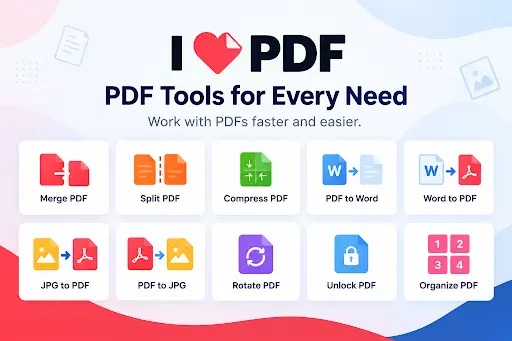
Each tool gets its own tile. You pick one, you upload, you`re done. There are no toolbars to decode and no settings screen to wade through before you can start. Here`s how the main groups hold up.
Organizing documents
Merge, split, reorder, rotate, delete pages, add page numbers. You drag files in and drag pages around, and you can see what you`re doing as you do it. Pulling six pages out of a 200- page annual report takes less time than finding the report.
Merging is where it saves the most grief: lecture notes from four weeks, a contract and its three attachments, a pile of scans from a phone. One tip, since this bites everyone once: check the page order in the preview before you hit the button, because fixing it afterwards means starting over. Rotating is the same story. A sideways scan in the middle of a 30-page file is easy to miss until someone else opens it.
Compression
Email and application portals love a 10 MB or 25 MB cap, and Compress is how you get under it. It strips metadata and re-encodes the images inside the file. Text stays sharp. The images get a little worse, but they’re still readable, and that’s the price of a file that actually sends.
It`s worth opening the result before you attach it. If the file is mostly photos or scans, the savings can be big. If it`s already mostly text, there isn`t much to squeeze, and no tool will fix that.
Conversion and OCR
PDF to and from Word, Excel and PowerPoint works, as does JPG, PDF/A and Markdown. That covers most of what anyone converts in a normal week, and PDF/A is a nice one to have if you send files to archives or government offices.
OCR is the one to watch. A scan is basically a photo of text, so you can`t select or search any of it. iLovePDF reads the characters and gives you something editable. On a clean, high- resolution scan it works well.
Feed it a skewed or blurry page and you`ll get errors you have to fix by hand, which is true of every OCR tool I know of. The fix is boring and works: scan at a decent resolution, keep the page straight, and don`t expect miracles from a photo taken at an angle under a desk lamp.
Editing, forms and signatures
The web editor handles small jobs: a text box, a shape, a logo, an admin form. Don`t expect more than that. If you`re trying to change a paragraph in the middle of a designed brochure, you`ll get frustrated fast. If you need to change the words inside a PDF online, Sejda PDF handles direct text editing in the browser.
You can capture a simple e-signature in it. For a document that needs several people to sign, there`s iLoveSign, a separate platform built for requests like that. It`s a better fit than emailing a PDF back and forth and asking everyone to "just sign and send it back," which never goes smoothly with more than two people.
Protection and redaction
Password protection and watermarks are standard features. A watermark on a draft saves you the awkward email when someone treats it as final. Redaction is the one that matters. It deletes the text and images underneath rather than laying a black box over them, and a black box is how “redacted” documents keep turning up in the news with the text still selectable.
After you redact anything, search the file for the word you hid. It takes ten seconds and tells you whether it worked. Also keep the original file somewhere safe. Redaction is permanent, and you don`t want to find out you blacked out the wrong paragraph after you`ve deleted the only copy.
AI summaries and translation
You can summarize a document or translate a whole file. Premium comes with a set number of AI credits for this. It`s a useful extra, not the reason to buy. A summary of a long report is fine for deciding whether to read it. I wouldn`t trust one for a contract.
Free vs. Premium
Feature / limit | Free | Premium ($5/mo billed annually) |
| Core PDF tools | Basic tools | Basic and advanced tools |
| File size and task limits | Strict caps per operation | Much higher |
| Batch processing | A few files at a time | High-volume batches |
| OCR | Basic, limited document size | Full OCR |
| Platform access | Mostly browser | Web, offline desktop, mobile |
| Ads | Yes | None |
| Custom workflows | No | Yes, automated |
| Digital signatures | Basic e-signing | Full tools |
| AI credits | Limited, depends on plan | 2,000 |
The split is simple. If you touch PDFs a couple of times a month, free is fine, ads and all. If it`s a daily thing, the free limits will catch you halfway through a job, usually when you`re in a hurry, and $60 a year is cheap relief.
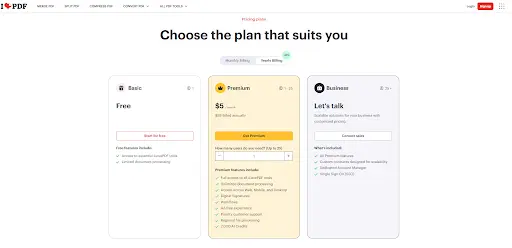
The offline desktop app and the AI credits come with it. So does batch processing, which is the feature you don`t miss until you have forty files to deal with. The ad-free interface sounds minor, but if you use the site every day you’ll notice it within a week.
Students should check before paying. iLovePDF often discounts or gives away Premium to verified academic emails. Companies that need single sign-on, centralized billing or a dedicated account manager have to go through sales for a Business plan, and there’s no public price.
A small team can’t sign up and see what it costs. Someone has to talk to sales first. That’s standard for business plans, but it’s a hassle if you just want a number.
Security and Privacy
If you’re converting a contract, a bank statement or a tax return, you’re handing it to a free website, and that deserves a second of thought.
iLovePDF encrypts transfers over HTTPS and says it follows EU GDPR rules. Uploaded files get deleted from its servers after a while. For a lecture handout, that`s plenty. For regulated client data or anything your compliance team has opinions about, I`d skip web uploads completely.
Even a short retention window means your file sits on someone else’s server for a while, and some employers and clients forbid that outright. The desktop app processes files on your own machine, so nothing is uploaded. If you’re not sure whether a file is allowed to leave your hands, ask before you upload. Nobody gets in trouble for a quick question to IT. People do get in trouble for a client`s tax return sitting on a website they didn`t clear.
How it Compares
Short version: iLovePDF wins on being quick and everywhere. The others win when you need more depth or a different price.
Which one is right mostly depends on what you do with PDFs all day. A person who edits brochures needs a different tool from a person who merges receipts for expense reports, and both of them are using "a PDF tool."
Competitor | What it`s good at | Pick it over iLovePDF when |
| Adobe Acrobat | The industry standard for serious PDF design, text reflow and enterprise signing | You`re actually authoring documents, not just fixing them |
| Smallpdf | A polished, friendly interface with about the same tools | You like how it looks. Honestly, it`s close to a coin flip, so compare tool caps and pricing |
| PDF24 Creator | Free, with no limits, offline, Windows only | You`re on Windows and want to pay nothing |
| Sejda PDF | Good direct text editing in the browser | You need to change the words inside a PDF, online |
| Foxit / Nitro / PDFgear | Full desktop suites with advanced markup, AI and corporate controls | You`re in legal, publishing or a big company and want a permanent installed program |
If we had to choose between iLovePDF and Smallpdf, we’d run the same job through both and keep the one that annoyed less. Sounds like a dodge. It isn’t: the feature lists are close enough that what’s left is how each one feels to use. Pricing and limits change, so check both sites the day you decide instead of trusting a comparison that’s months old, this one included.
Pros and Cons
What works:
- More than 20 tools in one place
- Nothing to learn: pick a tool, upload, process, download
- The same experience in the browser, the mobile apps and the desktop app
- Direct Google Drive and Dropbox import and export
- $5/month on the annual plan is far cheaper than the old desktop PDF suites
What doesn`t:
- The free limits are tight. If you hit a daily cap or a file size ceiling mid-task, you`re stuck until you pay or wait, and it always happens on the file that`s due in an hour.
- Editing is basic. If you need to rework a complicated layout, this is the wrong tool, and you`ll waste time finding that out.
- Some companies won`t allow sensitive files on third-party servers, and that rules out the web version for them. The desktop app helps, but only if you pay for it.
Best iLovePDF alternatives in 2026
Adobe Acrobat: Best for advanced PDF editing and professional document workflows.
Smallpdf: Best for a polished, beginner-friendly PDF experience.
PDF24: Best for a broad selection of PDF utilities, especially free options.
Sejda PDF: Best for straightforward online PDF editing and document manipulation.
PDFgear: Worth considering for a modern PDF editor with AI-assisted functionality.
Foxit PDF: A strong option for professional PDF software.
Nitro PDF: Worth considering for professional and business users who prefer a traditional desktop PDF environment.
The best alternative depends on your workload. Someone who compresses two PDFs a month has different needs from a legal team processing hundreds of documents.
Final Scorecard
Category | Rating (out of 5.0) |
Ease of use and interface | 5.0 / 5.0 |
Tool variety and versatility | 5.0 / 5.0 |
Conversion and compression quality | 5.0 / 5.0 |
Cross-platform accessibility | 5.0 / 5.0 |
OCR and text recognition | 4.5 / 5.0 |
Security and privacy options | 4.5 / 5.0 |
Overall score | 4.5 / 5.0 stars |